
Update: Google My Business is now called Google Business Profile. This guide has been retained for its practical setup principles, although some screen labels may differ.
A step by step guide, including images
Setting up a Google My Business profile is essential for increasing your business’s visibility on Google Search and Maps, especially for local customers. It helps improve local SEO, makes it easier for customers to find and trust your business, and allows you to engage with them through reviews and updates. Additionally, GMB provides insights that can help you refine your marketing strategies. Overall, it’s a powerful tool for boosting your online presence and attracting more customers.
Here’s a Step-by-Step Guide to Set Up a Google My Business Profile:
Step 1: Sign In to Your Google Account
Instructions:
Go to Google My Business https://www.google.com/intl/en_uk/business/ and click on the “Manage now” button.
If you aren’t signed in, you’ll be prompted to sign in with your Google account. Enter your email address and password. If you don’t have an account, create one. Here is the link to create one: https://accounts.google.com/signin
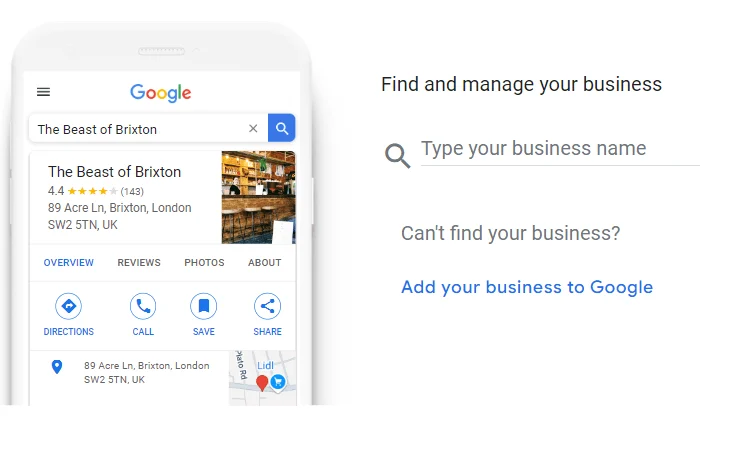
Step 2: Enter Your Business Name
After signing in, you will be asked to enter your business name.
Start typing the name of your business in the search box.
If your business appears in the dropdown list, select it. If not, click “Add your business to Google” to create a new listing.
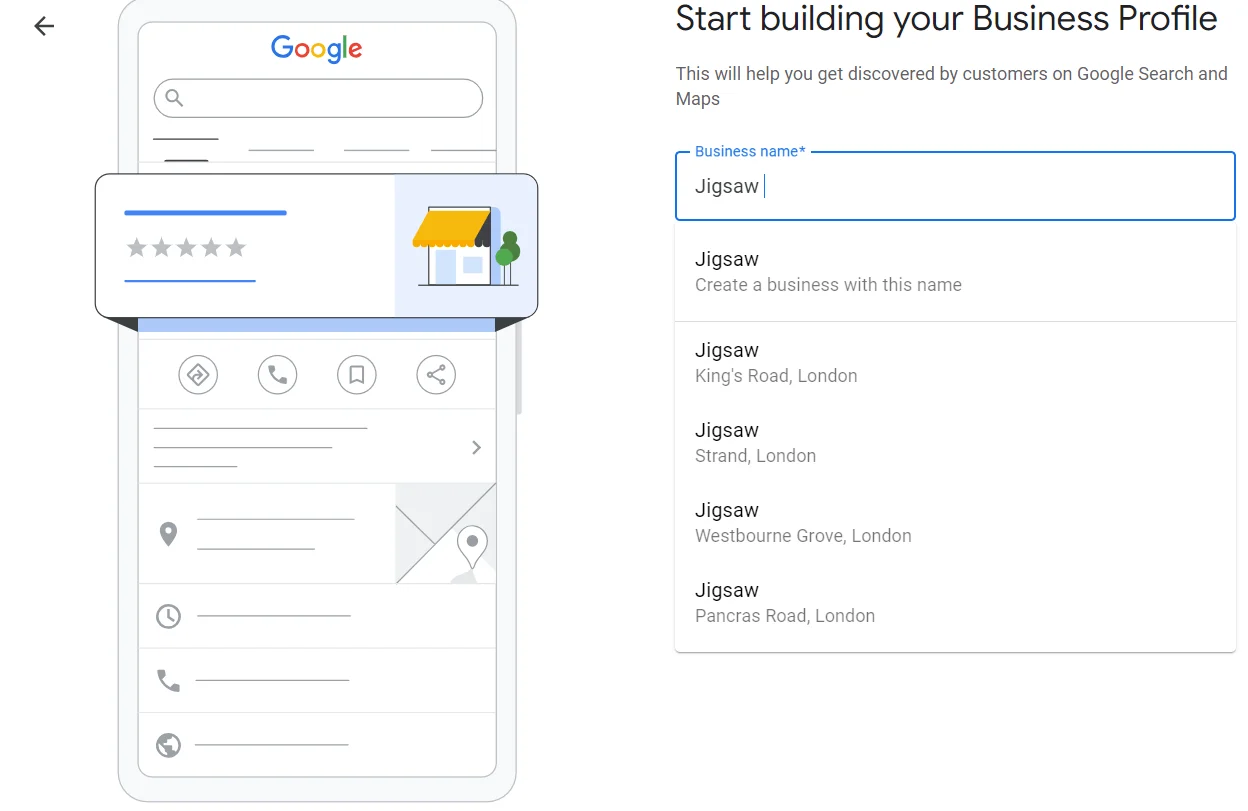
Step 3: Choose Your Business Category
Select the category that best describes your business. Google will suggest categories as you type.
Choose the most relevant category, as this affects how your business appears in search results.
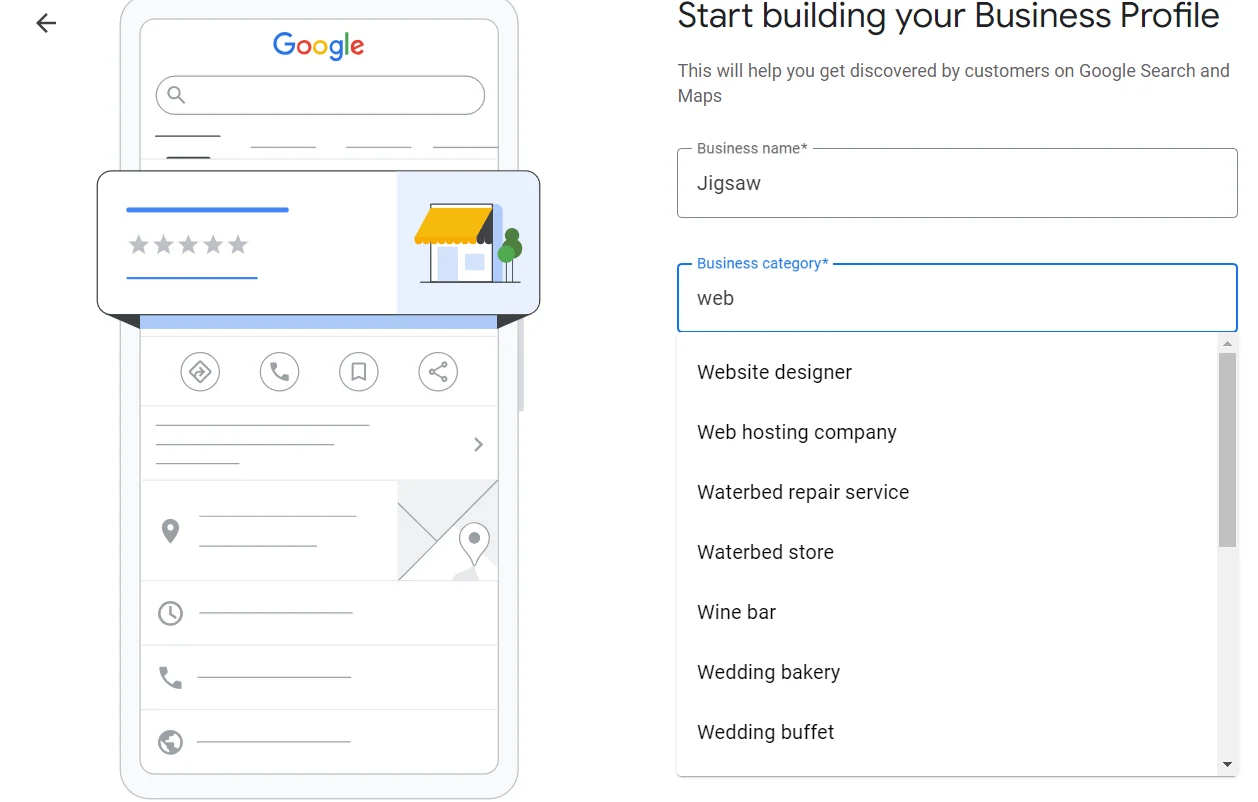
Step 4: Specify Your Business Location
If your business has a physical location that customers can visit, select “Yes” when asked if you want to add a location. Enter your business address accurately.
If you don’t have a physical store and only offer services, select “No” and specify your service areas.
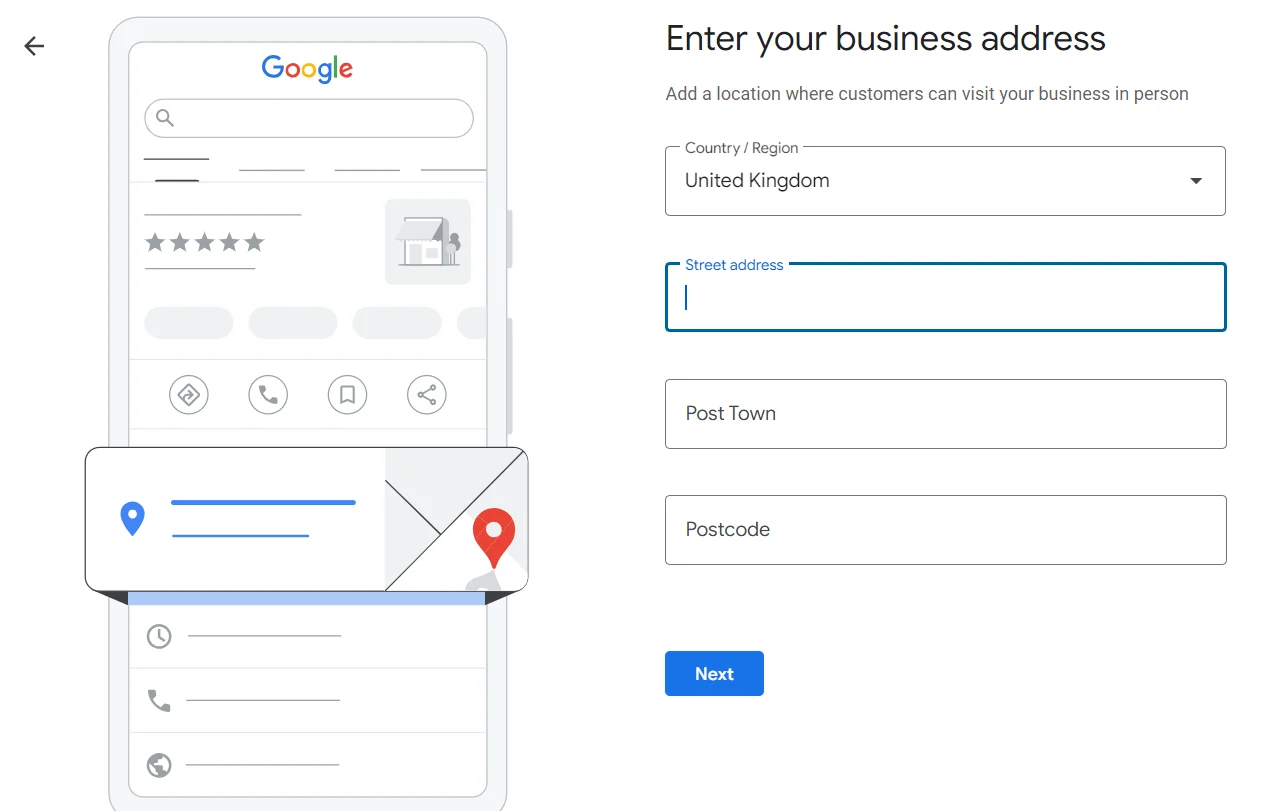
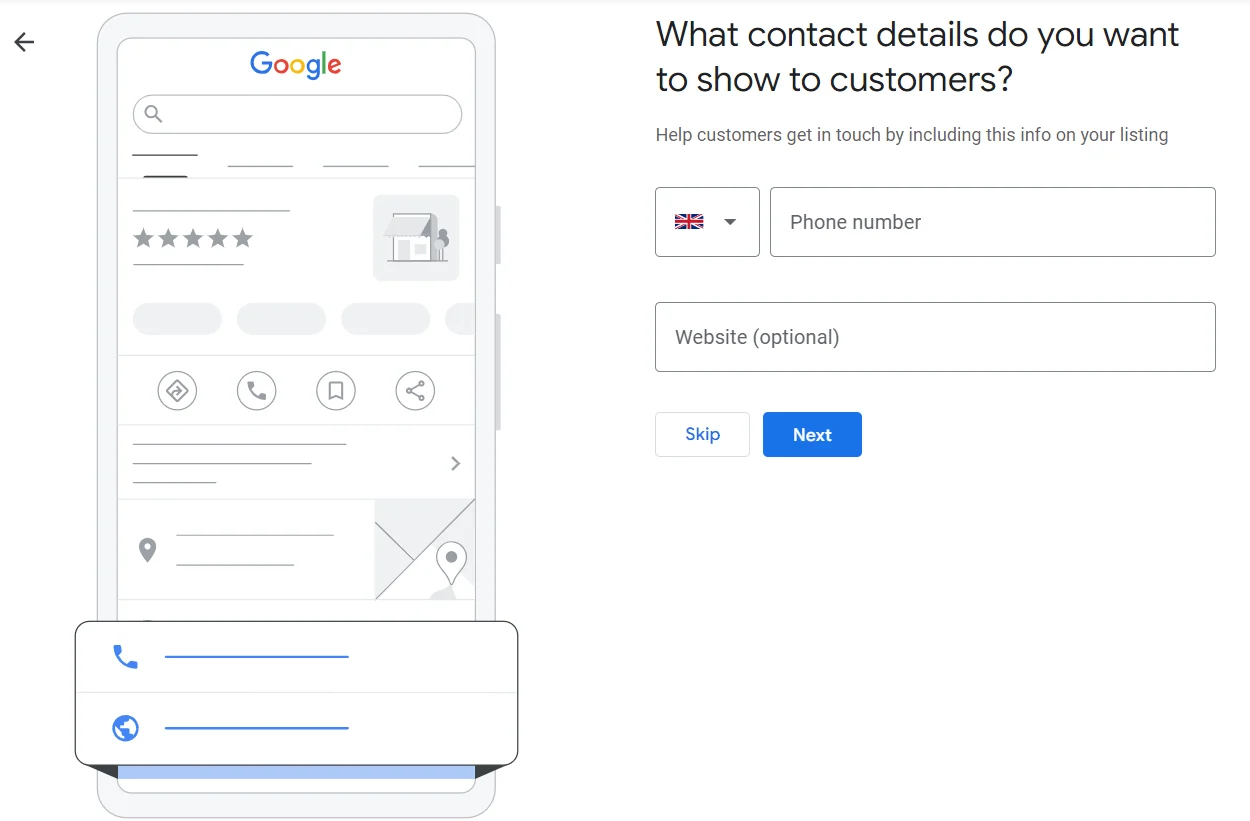
Step 5: Add Your Contact Information
Provide your business phone number and website URL.
If you don’t have a website, you can choose the option to create a free website through Google My Business.
Step 6: Verify Your Business
Google requires verification to ensure the legitimacy of your business. Choose a verification method (postcard, phone, or email).
Follow the instructions to complete the verification process. The most common method is via postcard, which takes about 5 days.
Step 7: Set Your Business Hours
Once verified, you’ll be prompted to set your business hours.
Choose the days and hours when your business is open to the public.

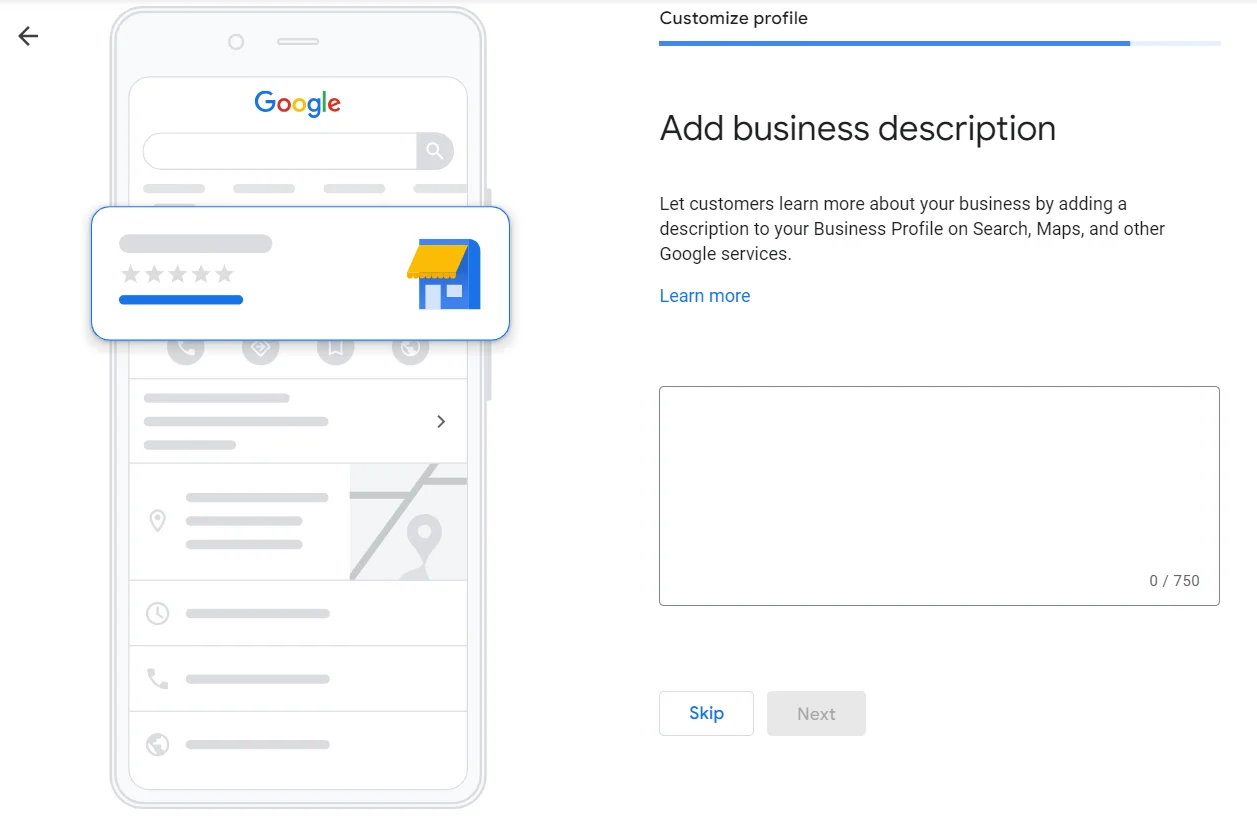
Step 8: Add business description
This is where you write a compelling description about your business. What product and services do you offer. What problem does your product and services solve
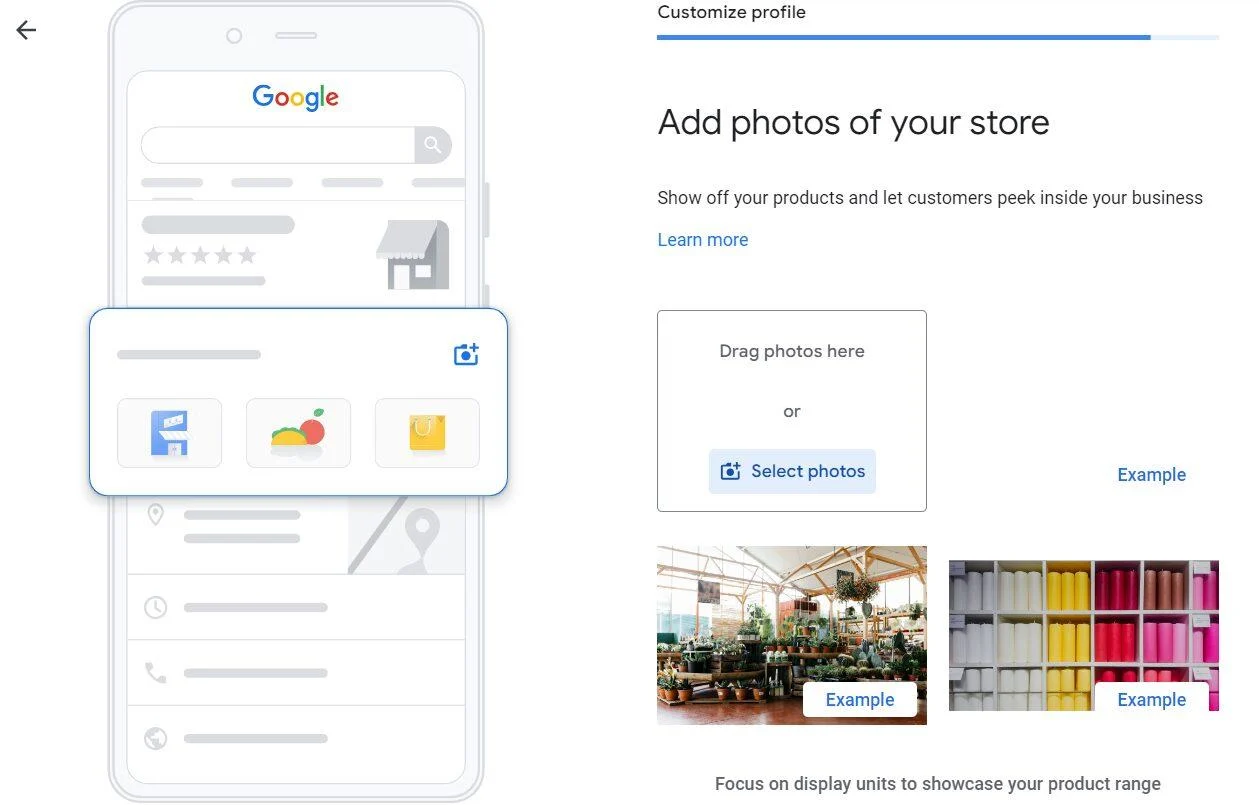
Step 9: Add Photos to Your Profile
Upload high-quality images of your business, including the exterior, interior, team, products, and services.
Adding photos makes your profile more attractive and engaging for potential customers.
Step 10: Complete Your Business Profile
Add additional details, such as a short business description, the services you offer, and other relevant attributes.
The more information you provide, the more likely customers are to find and engage with your business.
Step 11: Start Managing Your Profile
After setting up your Google My Business profile, you can manage it through the GMB dashboard.
From here, you can update your business information, respond to customer reviews, and track how your profile is performing
Ready to turn useful ideas into practical growth?
Tell us what you want to improve. We can bring your website, brand, marketing and automation together into a clearer plan.




